Next.js Unit Testing Standards
AAA Structure (Arrange, Act, Assert)
In technology, the phrase "Playing well with others" refers to the act of considering the approachability of our code.
We leverage the AAA structuring methodology (Arrange, Act, & Assert) when implementing tests to help separate concerns and maintain clean, organized, and understandable tests.
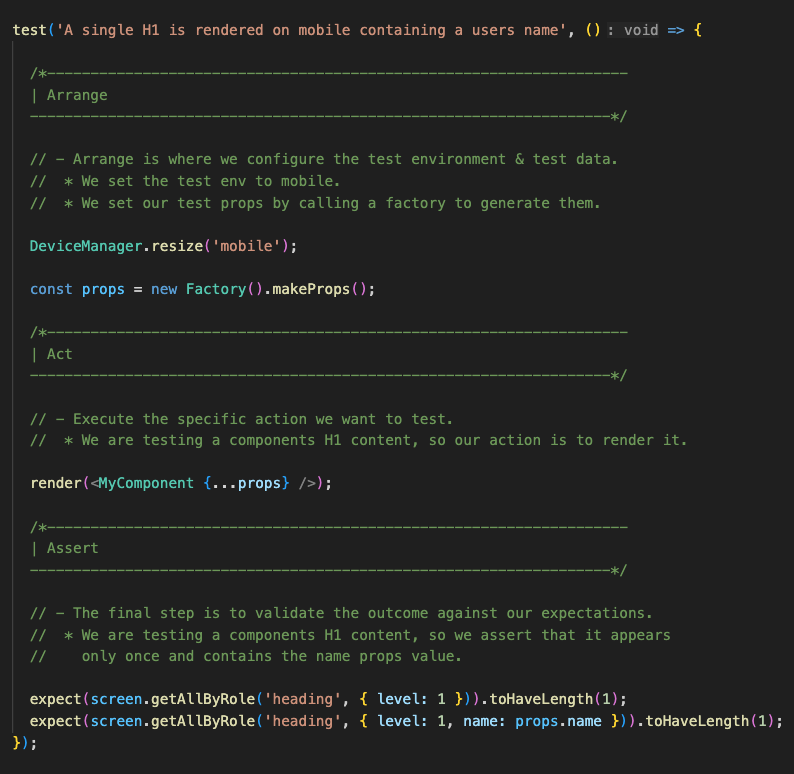
Arrange: Arrange is where we set up the test environment and its test data.
Act: In the act phase, we execute the specific action we want to test.
Assert: The final step is to validate the outcome against our expectations using matchers.
Now when (not if) tests fail, developers can quickly reference the Assert section & pinpoint the issue in seconds.
/*---------------------------------------------------------------------------
| Arrange
---------------------------------------------------------------------------*/

/*---------------------------------------------------------------------------
| Act
---------------------------------------------------------------------------*/

/*---------------------------------------------------------------------------
| Assert
---------------------------------------------------------------------------*/
Comment Block Formatting
/*---------------------------------------------------------------------------
|  Please be sure to use this comment block format for AAA segmentation
---------------------------------------------------------------------------*/
We asked and you answered! We are aware that this comment block formatting is unorthodox.
We solicited developer feedback asking folks to share their preference between the following options:
/*
* Arrange
*/

// Arrange

/*---------------------------------------------------------------------------
| Arrange
---------------------------------------------------------------------------*/
The overwhelming feedback from teams was that the visual segmentation gained by the 3 line comment block is superior and justifies the anti-pattern.
Why It Matters
Think of unit tests as insurance policies. They give your fellow developers the confidence to commit code fearlessly knowing that your test will fail and alert them if they have inadvertently broken things.
When tests do fail, developers:
- Are surprised
- Enter a state of denial
- Find themselves viewing a foreign test file for the very first time
AAA formatting protects developers from context switching by empowering them to bypass all distracting Arrange & Act test logic & focus only on the Assert section to see the assertion that is failing.
This enables devs to quickly fix their code and get back to ship it mode by alleviating the requirement to first dissect and understand the entirety of a test to resolve the issue!
Accessibility
Accessibility Violation Testing
Before any component can be considered production ready, accessibility violation tests are required for all factory states, screen breakpoints & languages.
Sound complex? Don't worry, we have created this JSX accessibility test service to handle all of this for you.
Simply copy this code snippet, update it with your component and factory paths, then drop it into your __tests__ directory!
import MyComponentPropsFactory from '@schwab/schema/factories/ui/MyComponentPropsFactory';
import { JsxTestTools } from '@schwab/test/ui/tools/JsxTestTools';
import MyComponent from '../MyComponent';

new JsxTestTools().runAllTests(MyComponent, new MyComponentPropsFactory());
Aria Usage
Developers should prefer using the correct semantic HTML element over using ARIA, if such an element exists.
For instance, native elements have built-in keyboard accessibility, roles and states.
If you choose to use ARIA, you are required to mimic all equivalent browser behaviors within your accessibility.test.tsx file.
A component utilizing Aria can only be considered production ready once we have tests in place that confirm non-visual experiences have not been negatively impacted.
Quick Tips:
"No ARIA is better than Bad ARIA"
Incorrect ARIA misrepresents visual experiences, with potentially devastating effects on their corresponding non-visual experiences. We should always be certain that aria attributes are required for our use case prior to implementation.
"When should I avoid using ARIA?"
Developers should prefer using the correct semantic HTML element over using ARIA, if such an element exists. For instance, native elements have built-in keyboard accessibility, roles and states. However, if you choose to use ARIA, you are responsible for mimicking the equivalent browser behavior in script.
Tip: If you find yourself adding aria to help screen readers understand your markup, you should ask yourself these questions:
- Did I over engineered this?
- Is there a simpler approach to accomplishing the same outcome utilizing semantic HTML elements?
- Should i pull in a tech lead to help me review this approach?
Schwab Accessibility Resources
- Developer Guidelines for Semantic Structure
- Developer Guidelines for Multimedia Animations and Motion
- Developer Guidelines for Links/Navigation
DOM Queries
The more your tests resemble the way your software is used, the more confidence they can give you.
Queries are the methods that allow you to find elements on the page. There are several types of queries available to while testing.
When utilizing queries, we encourage developers to write tests that closely resemble how Schwab web pages are used by visual and non-visual users.
Guiding Principles
We should always test our applications components in the way Schwab users would use them.
We can do this by interacting with DOM nodes rather than component instances when we run our test queries.
Query Priority
Please follow the order of priority when leveraging queries to in your tests. The majority of your tests should utilize the preferred accessible query types.
🟢 Accessible Queries (preferred)
Accessible queries reflect the experience of visual/mouse users as well as those that use assistive technology.
Accessible queries should always be our preferred query type when testing as they will help catch accessibility issues that are commonly missed when developing and manually testing components.
See the "Why we prefer accessible queries" section below.
🟡 Semantic Queries (ok)
HTML5 and ARIA compliant selectors. Semantic queries should be used only if an accessible query will not suffice for your use case.
These selectors do come with risks though as user experiences of interacting with these attributes will varies greatly across browsers and assistive technology.
🔴 Test ID Queries (last resort)
Used as a last resort only. Test ID queries allow you to query by a the configured attribute on the element.
Users will not see (or hear) test id attributes so they are safe, but bloat the code and are more cumbersome to implement across tests.
Why we prefer accessible queries
Discovering an issue while writing a test is truly a blessing in disguise. Accessible queries help expose accessibility issues that we as developers will commonly miss.
Imagine this scenario:
Your tests needs to click a rendered button. You have a created a button in your component and you are able to click it in your browser no problem.
However, you cannot seem to locate the 'button' with a simple screen.getByRole('button') query within your test.
The Reason:
The inability to query an element by role (like the 'button' in our example) indicates that the element is simply not accessible.
Meaning assistive technologies like a screen reader will not be able to properly present it to Schwab users.
The Risk:
As developers we will naturally want to attempt an alternate solutions to obtain the button.
I.G. querySelector('.my_button_class_name') would get the job done. However, the button is not accessible so this would be masking a greater issue vs fixing it.
The Payoff:
By utilizing accessible queries, any existing accessibility issues will quickly become apparent. This allows us to modify the our code.
Once we are able to use an accessibility query to obtain element, assistive technologies will also be able see/interact with the element.
🟢 Accessible Queries (Preferred)
Queries that reflect the experience of visual/mouse users as well as those that use assistive technology.
Because accessible queries interact with your rendered components the same way a Schwab users screen readers will, accessibility queries should be preferred over all others query types.
Query: getByRole
This can be used to query every element that is exposed in the accessibility tree. With the name option you can filter the returned elements by their accessible name. This should be your top preference for just about everything. There's not much you can't get with this (if you can't, it's possible your UI is inaccessible). Most often, this will be used with the name option like so: getByRole('button', {name: /submit/i}). Check the list of roles.
Query:getByLabelText
This method is really good for form fields. When navigating through a website form, users find elements using label text. This method emulates that behavior, so it should be your top preference.
Query: getByPlaceholderText
A placeholder is not a substitute for a label. But if that's all you have, then it's better than alternatives.
Query: getByText
Outside of forms, text content is the main way users find elements. This method can be used to find non-interactive elements (like divs, spans, and paragraphs).
Query:``getByDisplayValue
The current value of a form element can be useful when navigating a page with filled-in values.
🟡 Semantic Queries (ok)
HTML5 and ARIA compliant selector.
WARNING:
User experience of interacting with these attributes varies greatly across browsers and assistive technology.
Query: getByAltText
If your element is one which supports alt text (img, area, input, and any custom element), then you can use this to find that element.
Query: getByTitle
The title attribute is not consistently read by screen readers, and is not visible by default for sighted users
🔴 Query By Test IDs (last resort)
We should favor the use of accessible query types before considering the usage of test id queries.
Query: getByTestId
The user cannot see (or hear) these, so this is only recommended for cases where you can't match by role or text or it doesn't make sense (e.g. the text is dynamic).
Enforcement
When we write tests, we are not just checking a box, we are also making an important promise.
We are promising to our users and fellow schwabies that our Next.js code base will always be production ready when all of our tests pass.
To make this promise with confidence, we need an enterprise level testing strategy with strict standards in place.
Wait, Rules? Who needs those!
Well, we do! Test suites quickly become brittle and out right chaotic without rules. (AKA, the literal definition of "Unruly")
By following the Schwab Next.js unit test standards outlined in each tab, we can make honoring our promise to our users and peers a breeze.
PR's containing unit tests must adhere to all unit testing standards defined within this document or should not be approved.
Please do not hesitate to call out violations when reviewing a PR. It not only helps fellow developers learn, but it also enables them to teach others as well.
Remember: "We've made a promise to our users and peers", "You work here", "Do not allow others to make a mess on your desk".
File Naming
Test file names must be kebab cased, with a '.test' suffix. IE: "helper-function*.test.ts" OR* "react-component.test.tsx". (.spec is not supported)
File Types
Tests may be written in one of the following two formats:
- TypeScript (.test.ts) for function testing
- JSX (.test.tsx) for component testing
Hierarchy
The following outlines the test hierarchy and expected structure within the Next.js monorepo.
Test Location & Structure
Function (utility method) test structure
Please note: We have a collection of files in our above hierarchy example VS 1 monolithic .test file containing all tests.
We separate NextJs testing concerns into individual files named accordingly to help PR reviewers and fellow developers quickly navigate our test suites.
(IE: click.test, responsive.test, callback.test, and so on)
Iterative Testing
Iterative testing is an extremely powerful. It enables us to run a single tests assertions against an array of scenarios.
This is done by placing a test within a wrapper that loops through each possible scenario dynamically configuring the test environment to mimic each.
I.G. : We have many breakpoints and languages, lets make sure my tests will pass in every combination of the two.
However, "With great power comes great responsibility". Historically, iterating scenarios within tests comes with its drawbacks:
- It can lead to code bloat
- It can introduce a level of complexity that makes a test unapproachable
- Your list of scenarios may change and require maintenance or create a laps in coverage
For this reason, our team maintains a library of simple to use test wrappers that should be leveraged when ever you are iteratively testing.
We've designed these wrapper to dynamically support testing standards and future proof your iterative tests by centralizing the data we are leveraging. In the event that a data source change is required, (i.g. Schwab is now supporting a new breakpoint), our team can push out a single update that instantly adds the new breakpoint to all iterative tests.
Breakpoint (Device) Iteration
Schwabs Next.js implementation supports multiple breakpoints inspired by the screens of popular devices like mobile, tablet, and desktop. To iteratively render component tests in all supported breakpoints, we have created the Device Iteration Wrapper. Placing your tests within this wrapper will quickly iterate through all supported browser widths by leveraging the 'DeviceManager'. This empowers you to leverage the "device" variable to dynamically set your test environments browser width.
Language Iteration
At Schwab, we localize our site content to support an array of languages. To iteratively run tests in each supported language, we have created the Local Iteration Test Wrapper. Placing your tests within this wrapper will quickly iterate all supported languages by leveraging Factories. This empowers you to leverage the "local" variable to configure axe accessibility local and dynamically seed localized data.
Language & Breakpoint (device) iteration
To iteratively run tests at all supported breakpoints in all supported languages, we have created the Localized Device Test Wrapper.
Placing your tests within this wrapper will quickly iterate all combinations of language and browser width by leveraging the 'DeviceManager' and 'Factories'. This empowers you to leverage the "device" and "local" variables to dynamically arrange your test environment.
Localization
At Schwab, we localize our site content to support an array of languages.
For our components to be considered production ready, we must run our tests seeding localized data for each Schwab supported language.
We do this by iterating each supported language and setting the factory local before we generate our components props like so:
describe.each(new ModalPropsFactory().getLocales())('Modal localized tests', (locale: string): void => {

	describe(`Test ${locale}`, (): void => {

    test(`localized h2 contains provided heading copy`, async (): Promise<void> => {
      /*-------------------------------------------------------------------
      | Arrange
      -------------------------------------------------------------------*/

      const props = new ModalPropsFactory().locale(locale).mock();

      /*-------------------------------------------------------------------
      | Act
      -------------------------------------------------------------------*/

      render(<Modal {...props} />);

      const heading = screen.getByRole('heading', { level: 2 });

      /*-------------------------------------------------------------------
      | Assert
      -------------------------------------------------------------------*/

      expect(heading).toBeInTheDocument();
    });
Axe localized accessibility violation testing is currently in development.
The team is actively working to dynamically update the axe config local for you when the factory 'setLocal' method is called.
We suggest 'watching' this page for progress updates from the team.
Responsiveness
Schwab supports multiple breakpoints inspired by the screen widths of popular devices like mobile, tablet, and desktop.
Responsive Components
If your component is designed to conditionally render elements based on the current screen width, considered this to be a responsive component.
If you're testing a responsive component, you will be required to implement tests asserting that your component renders as expected for all supported breakpoints.
-
E.G. An element appears or disappears on specific screen widths
-
E.G. A class name is assigned based on a browsers width or resize event
These tests should be placed within a Device Iteration Wrapper and placed in your components __tests__/responsive.test.tsx file.
All Components
For components to be considered production ready, all tests must render the component within each supported screen width. Furthermore, we also require the use of the DeviceManager to loop through and resize your testing environment. This future proofs your tests in the event that breakpoints are added or altered. By taking this approach, new breakpoints will automatically be tested without any updates to your code.
The DeviceManager makes iterating and resizing for each supported screen size easy. Check out this example:
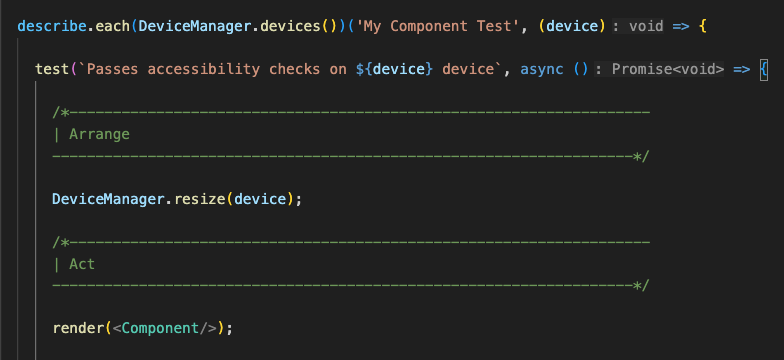
We've created a Device Iteration Test Wrapper template for you to leverage when responsive testing. Just clone it and add your test assertions.
Snapshots
Snapshot tests protect our UI from being unexpectedly altered.
They do this by storing a snapshot of a UI components original markup and running diff checks for subsequent tests.
For our components to be considered production ready, components must run snapshot tests for each supported device to verify that our UI has not been inadvertently altered.
Sound complex? Don't worry, we have created this JSX test service to handle all of this for you.
Simply copy this code snippet, update it with your component and factory paths, then drop it into your __tests__ directory!
import MyComponentPropsFactory from '@schwab/schema/factories/ui/MyComponentPropsFactory';
import { JsxTestTools } from '@schwab/test/ui/tools/JsxTestTools';
import MyComponent from '../MyComponent';

new JsxTestTools().runAllTests(MyComponent, new MyComponentPropsFactory());
Unit Tests Only
It is imperative that we avoid integration and functional testing within our NextJs codebase as it can introduce undesired latency.
With most IDEs configured to run tests on save, we must ensure that our tests run lightning fast and provide developers with the instant feedback they are expecting.
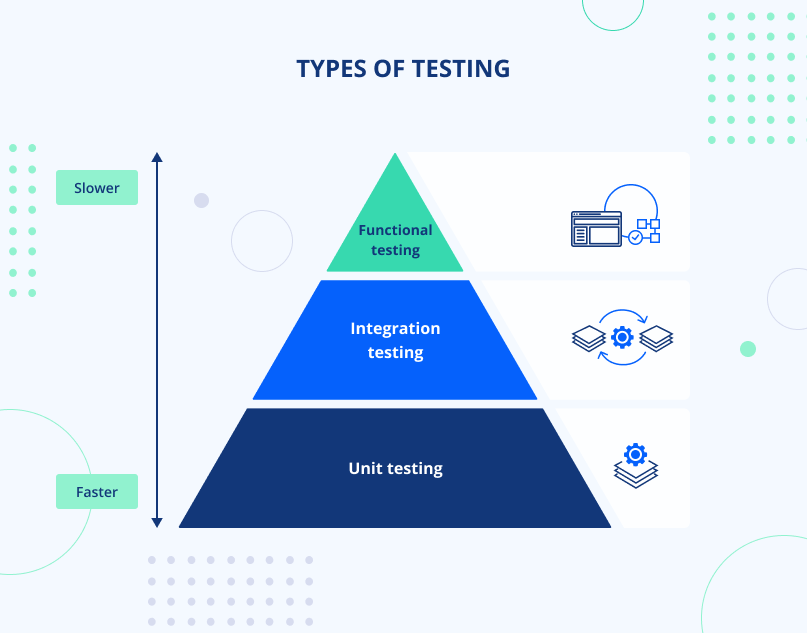
Please take a moment to understand the difference between Unit TestingandIntegration Testing.
Unit Tests VS Integration Tests
Unit Test:
A true unit test will make assertions against a single unit, such as a function call.
I.G. Tests that the sum(a, b) function returns the sum of the 2 numbers it was given.
Integration test:
An Integration test will make assertions against results aggregated from various parts and sources.
I.G. A method calls an external API, then, processes the response by passing it through a transformer function, then, tests that a users profile image is rendered.
Use Mocks
If the item you're testing has an external dependency, i.g. A component makes an API call on load. You are required to mock the API call so it isn't actually placed.
Unit tests must be able to run autonomously and cannot have un-mocked dependencies. If all dependencies have been mocked, we would then be testing a single unit, and the test would be a true unit test.
Helpful Tips
Here are a few items to think about when testing to ensure you are not inadvertently writing an integration test.
A test is not a unit test if:
- It cannot be ran asynchronously with other unit tests
- You must do special things to your environment (such as editing config files) to run it
- It is dependent on, and can not mock, any of the following:
- Another function
- A database
- An API call
- An external network
- A filesystem