Improve Jest Performance
Why Is Jest So Slow?
So the short answer: Resource Allocation
Jest runs multi threaded (queued) tests asynchronously. Jest is also extremely selfish when it comes to your machines resources. Meaning that Jest utilizes every bit of the resource that you allow it to use while executing tests.
Armed with this knowledge, we must take aim at resource allocation in 2 places: Docker resource allocation settings & Jests max resource configuration.
The following steps should help you improve your performance and reduce test execution times:
Step 1 - Tune your Docker Resource Allocation
Dockers default resource allocation is minimal by design. Running Jest with limited resource can result in:
- Long run times
- Tests timing out and failing
- Test processes quitting unexpectedly
- Tests silently timing out causing tests to "pass" because no test assertions were made before timeout.
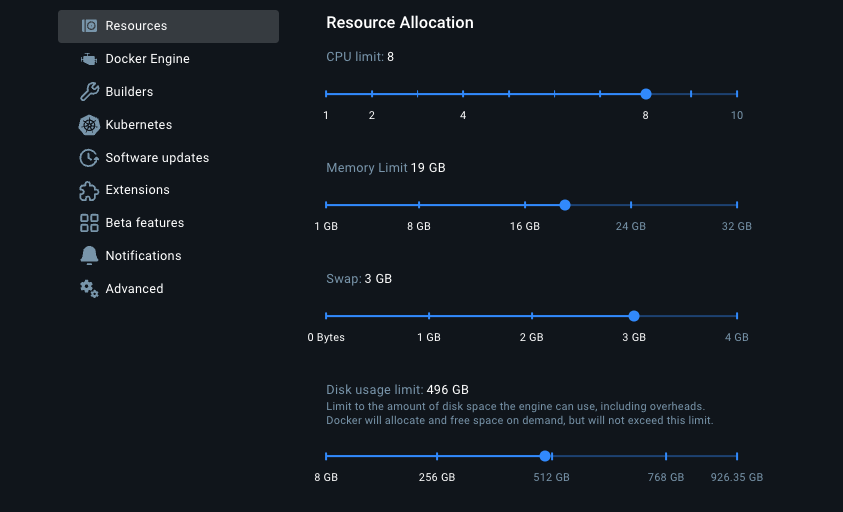 Resource allocation pane in Docker Desktop
Follow these steps to ensure Jest has the resource it needs:
- Open Docker Desktop
- Navigate to the top menu
- Click the symbol
- Click the "Resources" menu option on the left hand vertical menu
From here you can modify your Docker resource allocation.
Suggested Docker Resource Allocation
| Machine | CPU Limit | Memory Limit | Swap | Disk usage limit |
|---|---|---|---|---|
| Mac / Apple M1 Pro / 32GB | 8 | 19 GB | 3 GB | 496 GB |
Step 2 - Optimize Jest's Resource Usage
Now that we have increased Dockers resource we must stop selfish Jest from using all allocated CPU and memory. To achieve top performance, we will leverage Jests "max workers" to fine tune the amount of resource Jest can leverage. Unfortunately, there is no magic silver bullet number here!
To the right you will see some benchmarking results. Use these as a guide to help find the right max worker % for your machine.
For example: A Mac M1 Pro with 32GB of memory executed all test successfully in 54 seconds by setting --maxWorkers=80%
In this scenario a dev could run
pnpm test -- --maxWorkers=80%
Alternatively, --maxWorkers=80% can be appended to the the package.json 'test' script. Be sure not to commit this update though.
Benchmarking Jest Max Workers
All machines are different so you should try increasing or decreasing the maxWorker % until your execution times are optimal for your machine.
Your max workers may need to be increased or decreased from time to time depending on other factors like:
- You are running multiple containers
- You also have a dev server running
- You are running a build, conformance, or type-check simultaneously.
Stats from running all tests in the /packages/ui/ directory
| Machine | Max Workers as % | Execution Time |
|---|---|---|
| Mac / Apple M1 Pro / 32GB | 60% | 72s |
| Mac / Apple M1 Pro / 32GB | 70% | 62s |
| Mac / Apple M1 Pro / 32GB | 80% | 54s |
| Mac / Apple M1 Pro / 32GB | 90% | 56s |
| Mac / Apple M1 Pro / 32GB | 95% | 54s |
| Machine | Max Workers as # | Execution Time |
|---|---|---|
| Mac / Apple M1 Pro / 32GB | 3 | 97s |
| Mac / Apple M1 Pro / 32GB | 4 | 75s |
| Mac / Apple M1 Pro / 32GB | 5 | 62s |
| Mac / Apple M1 Pro / 32GB | 7 | 55s |
| Mac / Apple M1 Pro / 32GB | 10 | 60s |
| Mac / Apple M1 Pro / 32GB | 15 | 69s |
| Mac / Apple M1 Pro / 32GB | 20 | Time out occurs |