VSCode Debugger
VS Code natively supports debugging of TypeScript, JavaScript and Node code. So, you don't have to add a VS Code extension to use the debugging features on our code.
Step 1: Add A Breakpoint
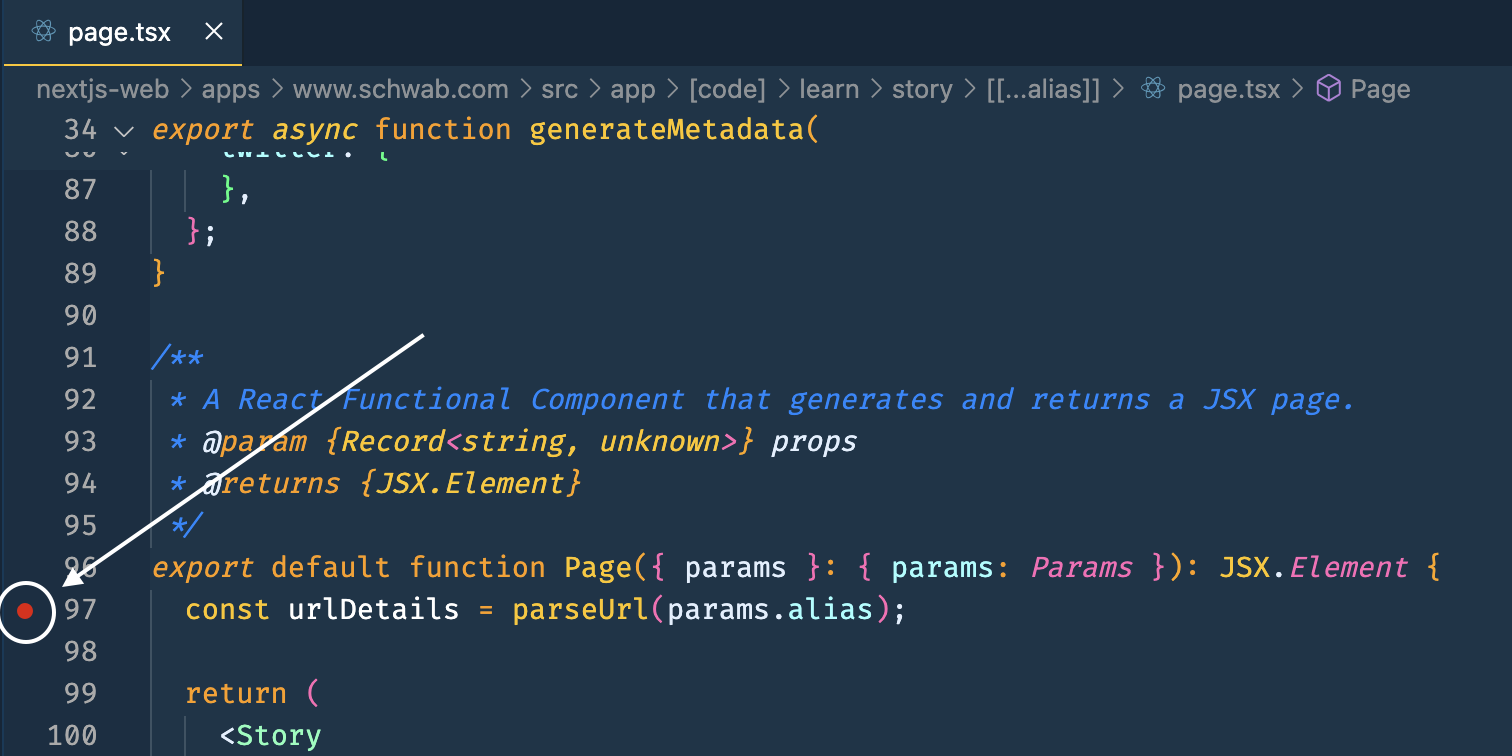
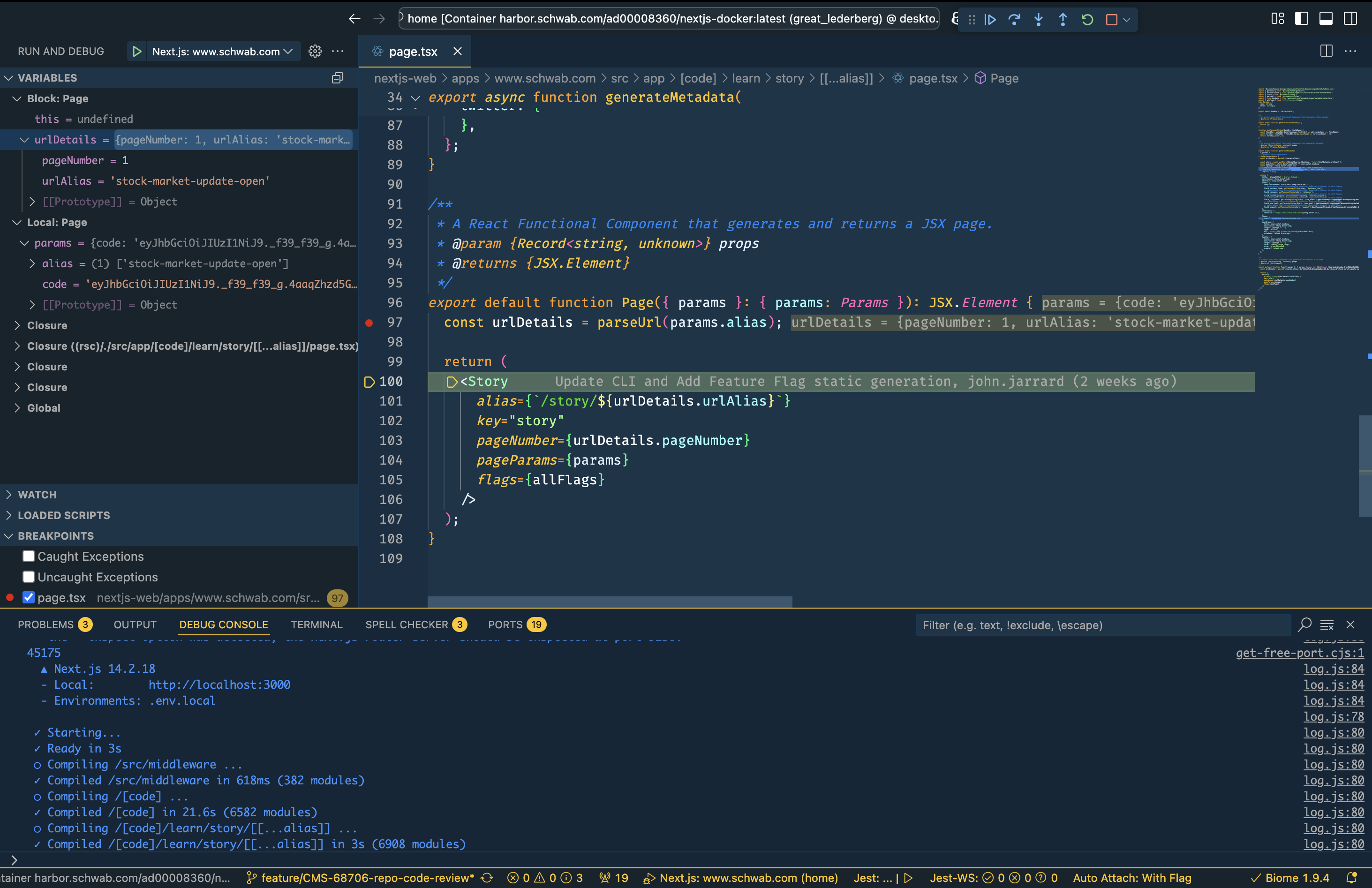
Open any ts, tsx, jsx, or js file. You can add a breakpoint to any line of code by clicking to the left of the line in the VS Code window.
Step 2: Go to Run and Debug
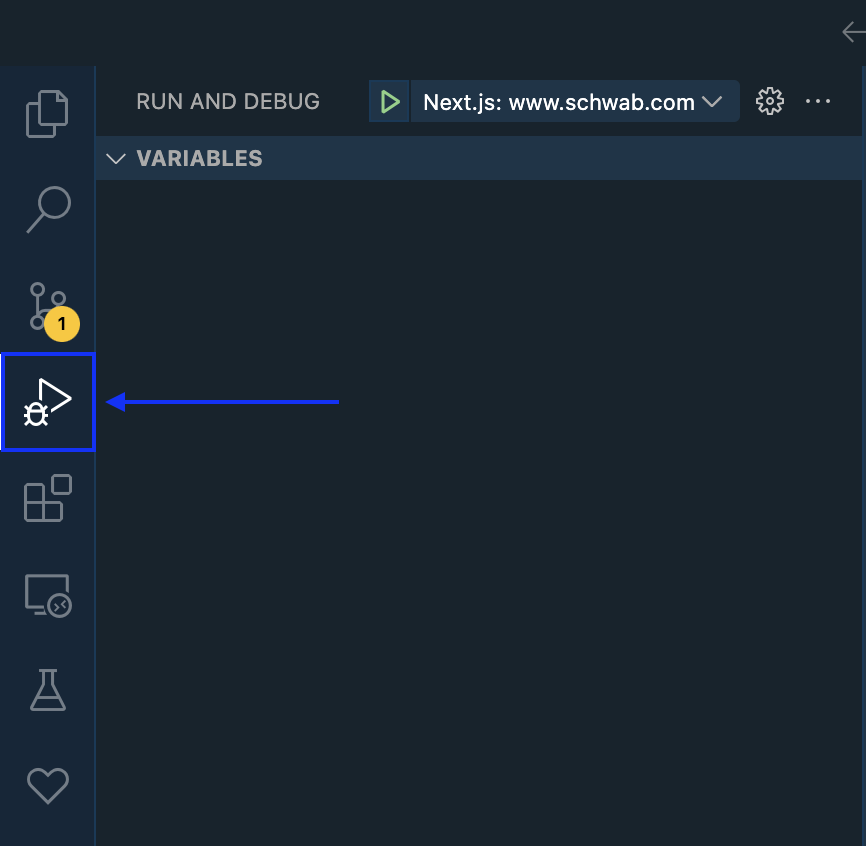
Click on the Run and Debug icon in the left sidebar of VS Code.
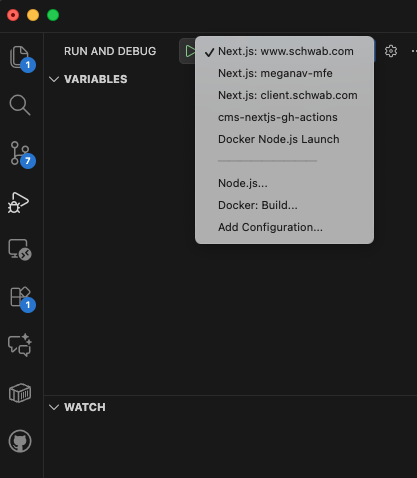
After clicking, you will see a drop-down menu at the top of the screen. Make sure the appropriate app is selected.
Step 3: Start The Debugger
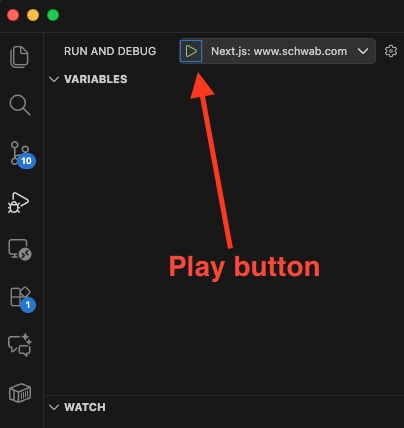
Press the Play button to start your application in debugger mode. (or click on F5). This will run the application so you don't need to run it manually (and it will open your app -- if it's a web app -- in your web browser)
Step 4: Navigate to URL
If you are debugging a specific web page, navigate to that exact page in your web browser.
For example, you may want to navigate to the page: http://localhost:3000/learn/story/stock-market-update-open in your web browser if that's the page you're debugging.
Step 5: Debug Process
The debugger will automatically stop the process at the breakpoint and allow you to step through the code, showing you the value of each variable.
You can step through the code using your keyboard:
- Continue (F5) - Resume execution until the next breakpoint
- Step Over (F10) - Execute the current line and move to the next line in the same function
- Step Into (F11) - Enter into any function calls on the current line to debug inside them
- Step Out (Shift+F11) - Exit the current function and return to the calling function
- Restart (Ctrl+Shift+F5) - Restart the debugging session
- Stop (Shift+F5) - Stop the debugging session
Note these labels in the Variables section in the upper-left corner of your screen:
- Block Page: these are the variables within the function you are executing.
- Local Page: these are the variables that the function is receiving.
Your debugging experience may be different depending on whether your code is running on the server-side (React Server Component) or the client-side.
Reference
VSCode Debugging - https://code.visualstudio.com/docs/editor/debugging