Using VSCode In The Monorepo
We use Docker containers for software development. The Docker images and containers are stored in https://harbor.schwab.com which is an Enterprise-class container registry.
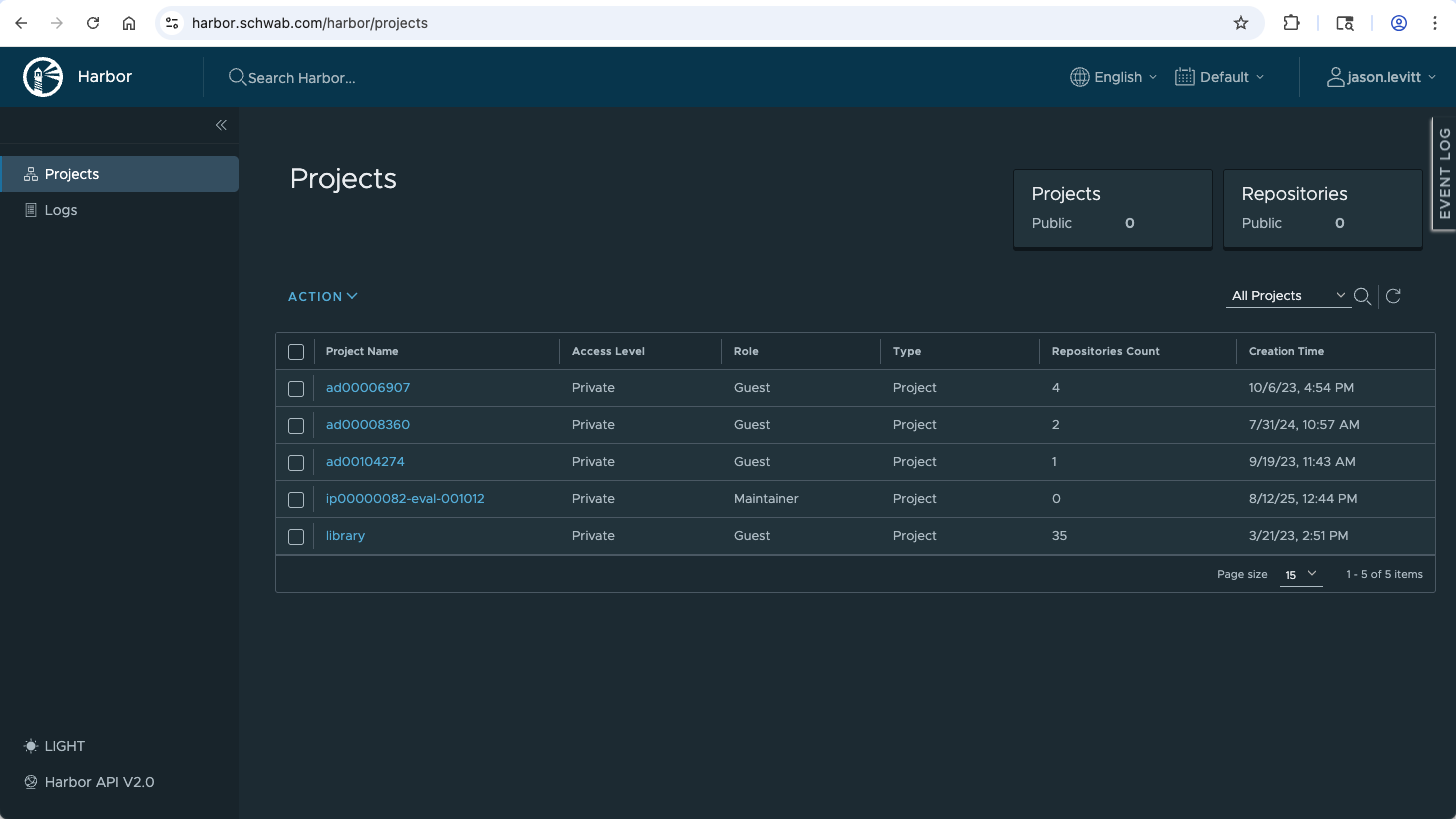 Harbor container registry showing available projects and repositories
Harbor Container Integration
Container Architecture
Our development environment leverages Harbor (harbor.schwab.com) as our enterprise container registry to provide consistent, secure development containers. The current setup uses:
- Base Image:
harbor.schwab.com/ad00008360/nextjs-docker:latest - Operating System: Red Hat Enterprise Linux 9.6 (Plow)
- Runtime Environment: Node.js 20.18, pnpm 9.1.1, Next.js 15.2
VSCode Remote Container Integration
VSCode seamlessly integrates with our Harbor-hosted containers through several key extensions:
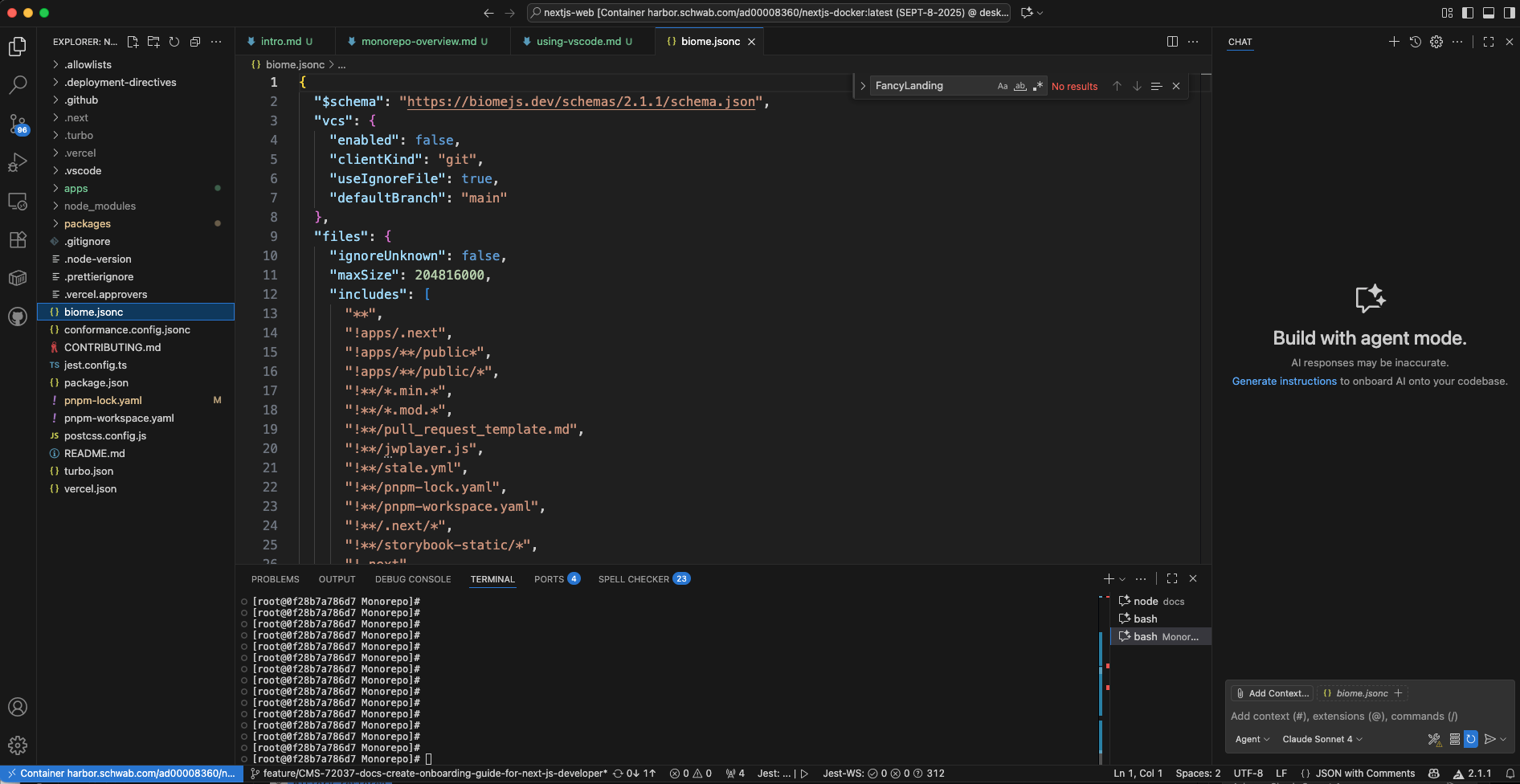 VSCode development environment showing the monorepo structure and integrated tooling
Core Container Extensions
| Extension | Purpose | Harbor Integration |
|---|---|---|
| ms-azuretools.vscode-containers | Dev Containers support | Manages container lifecycle and mounting |
| ms-azuretools.vscode-docker | Docker integration | Connects to Harbor registry for image management |
| docker.docker | Docker CLI integration | Provides container management within VSCode |
Development Extensions
The following extensions are automatically installed when attaching to the Harbor container:
# Language & Framework Support
biomejs.biome                           # Code formatting and linting
ms-vscode.vscode-typescript-next        # TypeScript language server
infeng.vscode-react-typescript          # React TypeScript snippets
bradlc.vscode-tailwindcss              # TailwindCSS IntelliSense
csstools.postcss                       # PostCSS support

# Development Tools
orta.vscode-jest                       # Jest test runner integration
streetsidesoftware.code-spell-checker  # Spell checking
howardzuo.vscode-favorites             # File bookmarking
cardinal90.multi-cursor-case-preserve  # Advanced editing
vscode-icons-team.vscode-icons         # Enhanced file icons

# Security & Compliance
vs-publisher-1464889.veracode-greenlight-for-vs-code  # Veracode security scanning

# GitHub Integration
github.copilot                         # GitHub Copilot AI assistance
github.copilot-chat                    # Copilot chat interface
github.vscode-pull-request-github      # GitHub PR management
Repository Mounting Process
When you attach VSCode to a Harbor container, the following mounting process occurs:
1. Container Discovery
- Registry Authentication: VSCode authenticates with
harbor.schwab.comusing your Schwab credentials - Container Detection: The Docker extension discovers running containers from Harbor images
- Remote Connection: VSCode establishes a remote connection to the selected container
- Workspace Mounting: The repository at
/home/nextjs-webis mounted as the VSCode workspace
2. File System Integration
The Harbor container provides:
- Full Repository Access: Complete monorepo structure available at
/home/nextjs-web/ - Persistent Storage: Changes persist across container restarts
- Git Integration: Full Git functionality with GitHub integration
- Node Modules: Pre-installed dependencies and pnpm workspace setup
3. Development Environment Initialization
Upon container attachment, VSCode automatically executes setup scripts:
# Automatic setup via .vscode/setup-ide.sh
chmod +x ./.vscode/setup-vercel-env.sh     # Environment variables from Vercel
chmod +x ./.vscode/setup-turbo-cache.sh    # Turbo build cache configuration
chmod +x ./.vscode/setup-vscode-plugins.sh # Extension installation
Harbor Container Benefits
Security & Compliance
- Registry Security: Harbor provides enterprise-grade security scanning
- Access Control: Role-based access control integrated with Schwab AD
- Vulnerability Scanning: Automatic image vulnerability assessment
- Compliance: SOC 2 and enterprise compliance built-in
Development Consistency
- Standardized Environment: All developers use identical container configurations
- Version Control: Container images are versioned and tracked
- Dependency Management: Pre-installed tools and dependencies
- Configuration Sync: Shared VSCode settings and extensions
Performance Optimization
- Layer Caching: Docker layer caching reduces startup time
- Pre-built Images: Harbor hosts optimized, pre-built development images
- Resource Management: Container resource limits prevent system conflicts
- Network Optimization: Internal network routing for Harbor registry access
Development Workflow
Starting Development
- Container Selection: Use "Attach to Running Container" from VSCode Remote Window
- Automatic Setup: Setup scripts configure environment and pull latest dependencies
- Extension Loading: All required extensions load automatically
- Workspace Ready: Full monorepo workspace available with IntelliSense
Daily Operations
# Common development commands work seamlessly in the container
pnpm dev                    # Start development servers
pnpm build                  # Build all applications
pnpm test                   # Run test suites
git status                  # Git operations
vercel env pull            # Pull environment variables
Harbor Integration Commands
# Harbor-specific operations (handled automatically by VSCode)
docker login harbor.schwab.com          # Authentication
docker pull harbor.schwab.com/...       # Image updates
docker run --name SEPT-8-2025 ...       # Container creation
Configuration Management
VSCode Settings Integration
The container includes pre-configured VSCode settings optimized for our stack:
{
  "editor.formatOnSave": true,
  "editor.defaultFormatter": "biomejs.biome",
  "jest.jestCommandLine": "pnpm jest --maxWorkers=50%",
  "tailwindCSS.experimental.configFile": "packages/twconfig/src/prospect/theme.css"
}
Environment Variable Management
Harbor containers automatically configure:
- Vercel Integration: Environment variables pulled from Vercel projects
- Turbo Cache: Build cache configuration for optimal performance
- Git Configuration: Authenticated access to GitHub repositories
- Node Environment: Optimized Node.js and pnpm configurations
Troubleshooting Harbor Integration
Common Issues
-
Authentication Failure
# Re-authenticate with Harbor
docker login harbor.schwab.com -
Container Not Found
- Verify MyAccess permissions for
app_AD00104274_harbor_ro - Check Docker Desktop for running containers
- Verify MyAccess permissions for
-
Extension Loading Issues
- Extensions install automatically; wait for completion
- Manually run
.vscode/setup-ide.shif needed
-
Repository Mount Problems
- Ensure container was started with proper volume mounts
- Check
/home/nextjs-webdirectory exists in container
Performance Optimization
- Image Updates: Regularly pull latest Harbor images for security and performance updates
- Container Cleanup: Remove unused containers to free system resources
- Extension Management: Only install necessary additional extensions to maintain performance
This Harbor-based development environment ensures secure, consistent, and efficient development across all team members while providing the full power of VSCode's remote development capabilities.