Getting Software
MacOS
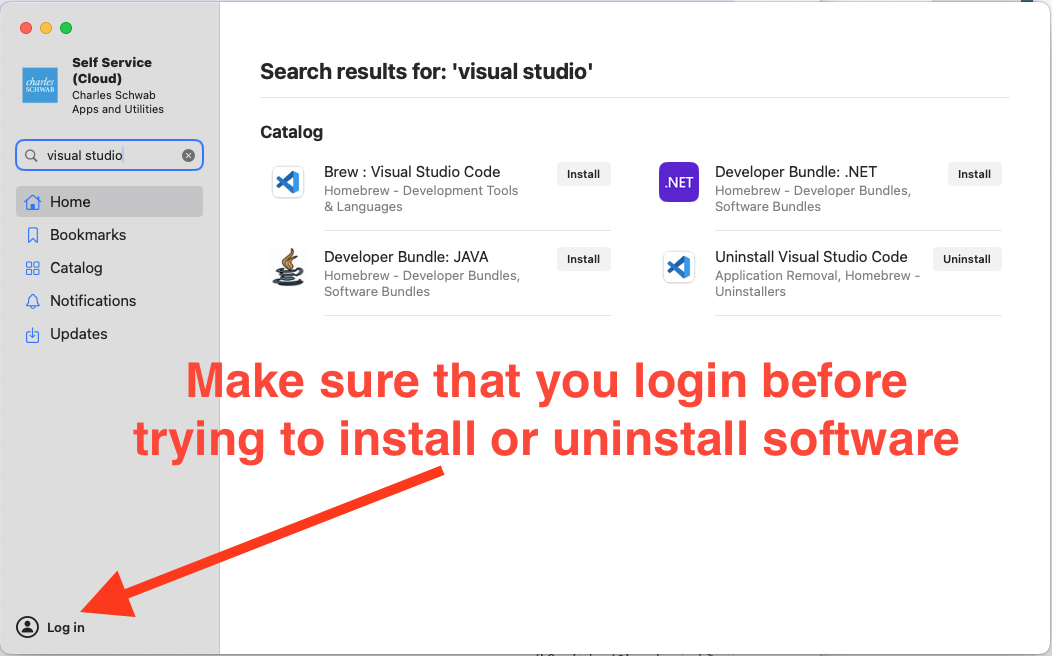
On MacOS, you should see an application in your Application folder named Self Service+. This app is used to install nearly all of the software that you'll use.
Windows
On Microsoft Windows, there are two possible ways to get software.
- Schwab App Store app (also called BigFix) for software that does not require approvals or elevated access. You should have an app already installed on your machine that is named
BigFix(this is a pseudonym forSchwab App Store)

- MyIT for software that requires elevated access or approvals.
You'll need to go to https://schwab-dwp.onbmc.com/dwp/app/#/itemprofile/4206 and:
- Click on the
Request nowbutton - Click on the
Choose from Allradio button - Enter your KNumber (In Windows, search for
Aboutand selectAbout My PCwhich should show your KNumber). Enter your KNumber and then do a carriage return and wait for it to recommend a KNumber domain name for you. - Click on
Full Software List - At this point, you can enter any search term. For example, enter
gitas a search term and selectGit for Windows. - Click on the
Submit requestbutton
When using MyIT, software that does not require manager approval should install within an hour or so despite what it may say on the web page.
Install Necessary Software (MacOS only)
| Application | Notes |
|---|---|
| Docker Desktop | Use the Self Service+ app and search for Docker Desktop |
| VS Code | Use the Self Service+ app and search for Visual Studio Code |
| Nextjs-Docker Installer | Use the Self Service+ app and search for nextjs-docker Helper |
| Homebrew | Use the Self Service+ app and search for Homebrew |
Install Necessary Software (Windows only)
| Application | Notes |
|---|---|
| Docker Desktop | Use BigFix and search for Docker Desktop |
| VS Code | Use BigFix and search for Visual Studio Code |
| Nextjs-Docker Installer | Use BigFix and search for NextJS-Docker.sh - Docker Container Spin Up Utility |
| Git for Windows | Use MyIT as explained above and search for Git for Windows |
If you are unable to find the nextjs-docker.sh script, you can download it directly from our Github repo here. The same script is used for both Windows and MacOS.
Software For Remote Working
For those times when you may be working from home or on the road, you'll need some special tools.
This only applies to Schwab employees located in the U.S. and Canada
- Install PingId on your cell phone
Schwab uses Zscaler for network access when you're working remotely. You should be able to find Zscaler in your Applications folder (MacOS) or C:\Program Files (Windows).
- Run Zscaler. The first time you run Zscaler, it should prompt you to sign-in using your Schwab login credentials.
- After you signin to Zscaler for the first time, it should show a QR Code that you need to scan using the PingID app on your cell phone.
- Open PingID and select the option to scan a QR Code.
In the future, when you are working remotely, you will be prompted by Zscalar to reauthenticate every 12 hours by running PingID and matching the displayed number.