Get A Container
Spinning Up A Container
This page assumes that you have all of the permissions you need from the Getting Access page.
Once you have all your permissions granted, tokens gathered, and applications installed, spin up a Next.js Docker container
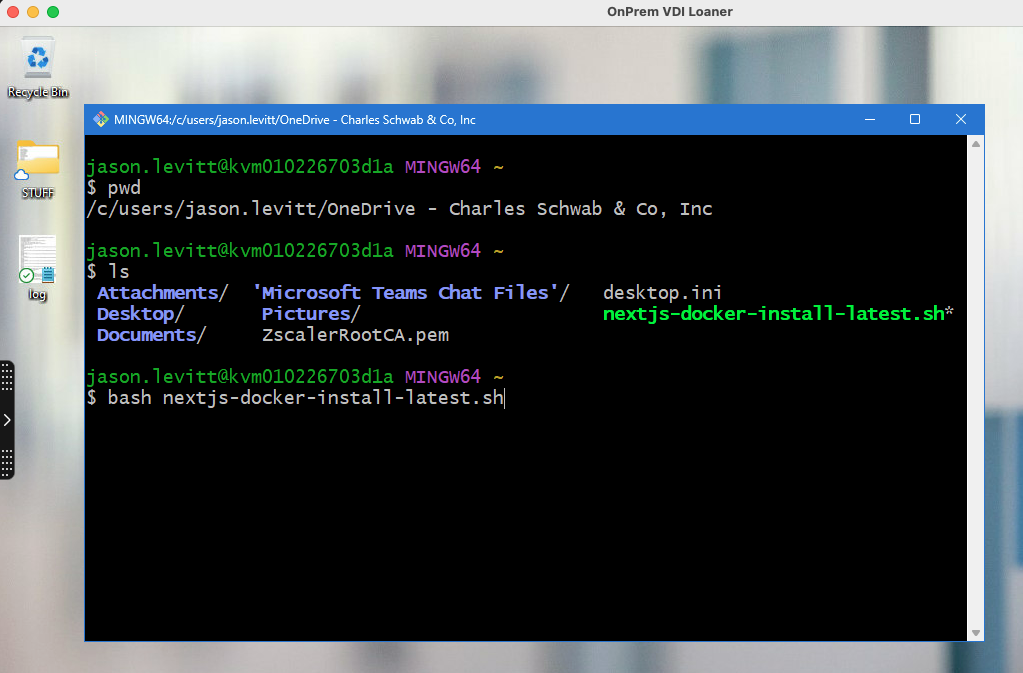
- On Windows, open a Git Bash terminal, find the
nextjs-docker-install-latest.shscript, and runbash nextjs-docker-install-latest.sh
- On MacOS, open a local Terminal window (not inside VS Code) and type
nextjs-docker
The Terminal app in MacOS is located in your Applications folder at Applications/Utilities/Terminal.app.
- To answer all the prompts, you'll need:
- Your Schwab username and password
- Your Github token
- Your Jira token
- Your Schwab email address
- Your Jira prefix -- it's
CMS - Proxy is
Z
When prompted, accept defaults for the other choices.
Attaching Your Container In VS Code
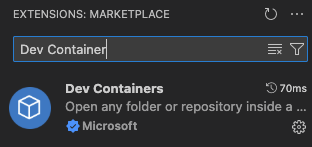
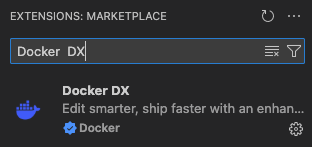
Once the image is spun up, open VS Code and install the Dev Containers and Docker DX extensions if they are not already installed.
In VS Code , click the blue "Open a remote window" icon in the bottom left corner of the VS Code window. It will prompt you with some options. Look for "Attach to Running Container..." and select the name of the container we just spun up.
| Step 1: Attach to Container | Step 2: Select Container |
|---|---|
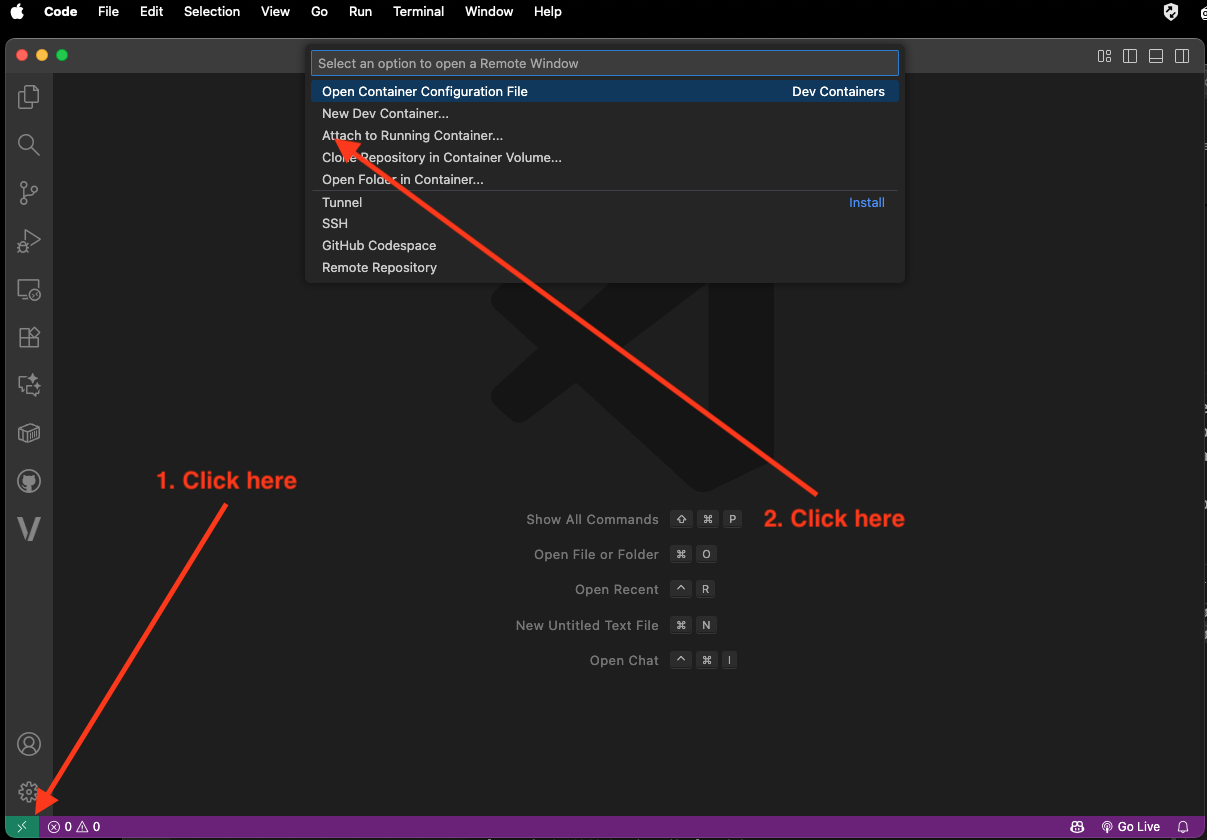 | 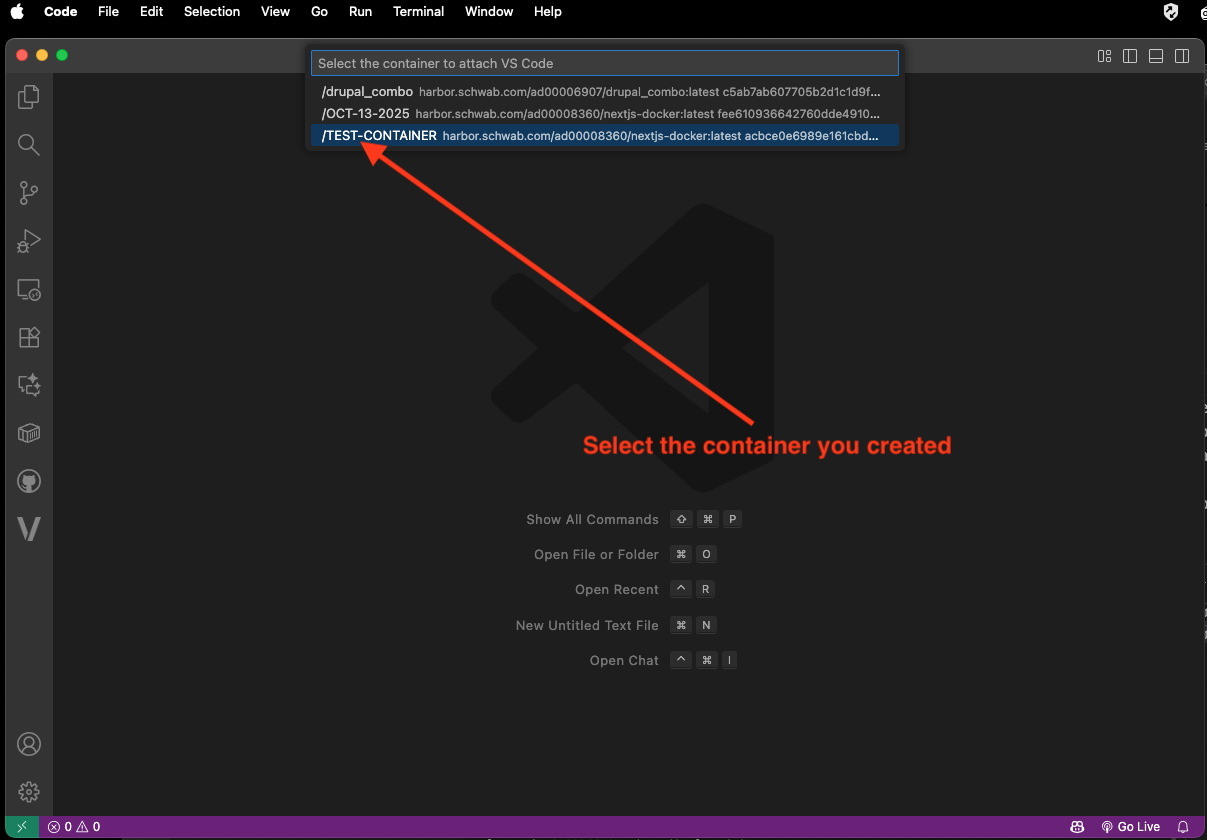 |
| Attach | Select |
- Once you click on your container in the last step above, you should see a terminal window open up in VS Code that will run through scripts to setup your local development environment.
- Auth 1 - you'll see a URL that needs to be opened in order to authenticate to Vercel. Ctrl+click the link to open it in the browser. Once it opens, copy the token to your clipboard and paste the string into the terminal in VS Code. Or, the token may already be populated. In that case, just accept it.
- Auth 2 - you'll see a URL that needs to be opened in order to authenticate to Turbo. Ctrl+click the link to open it in the browser.
- Finished - Once the flow is finished, you can just hit carriage return to start exploring.
| Auth 1: Vercel | Auth 2: (more) Vercel | Finished |
|---|---|---|
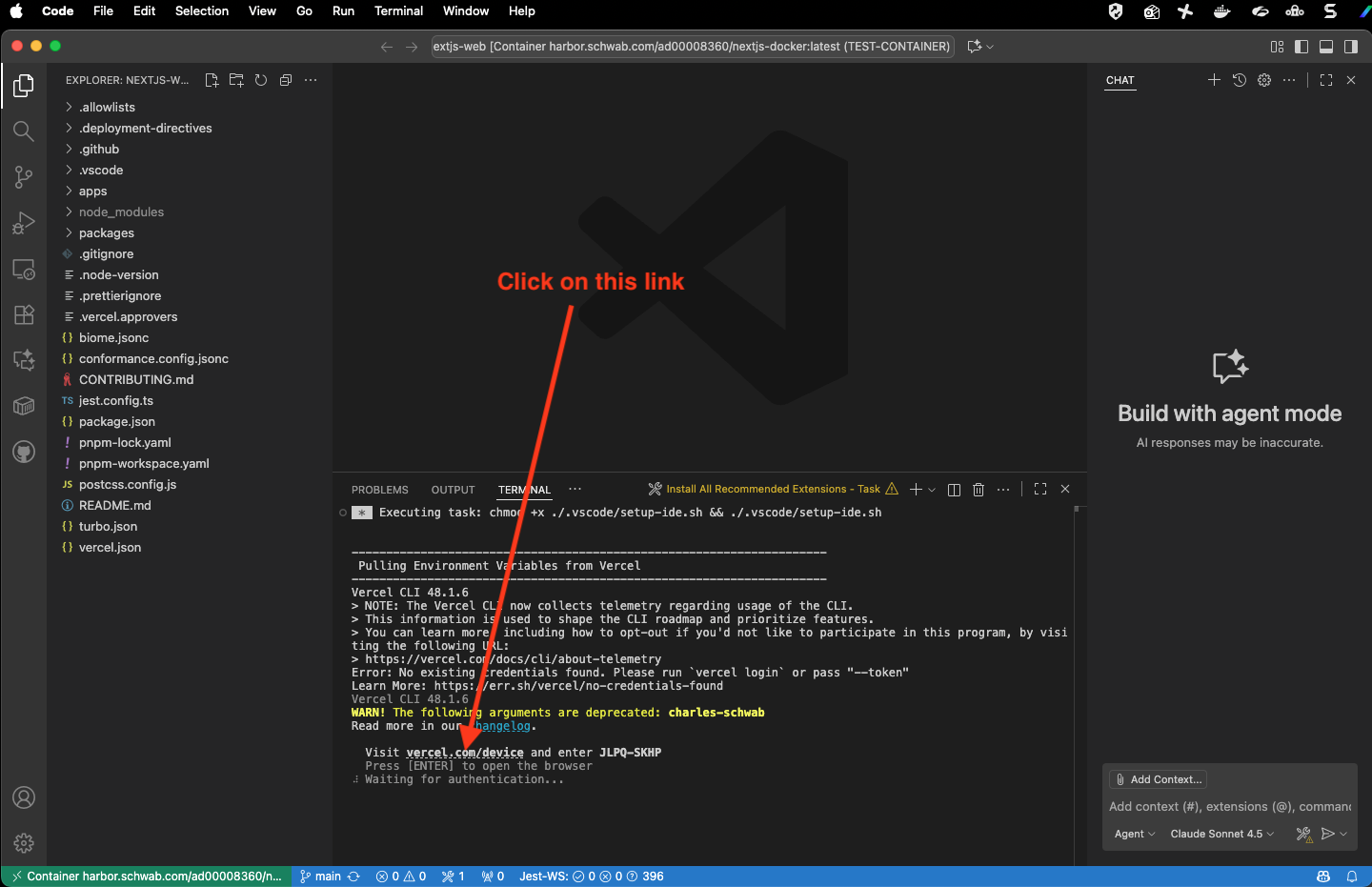 | 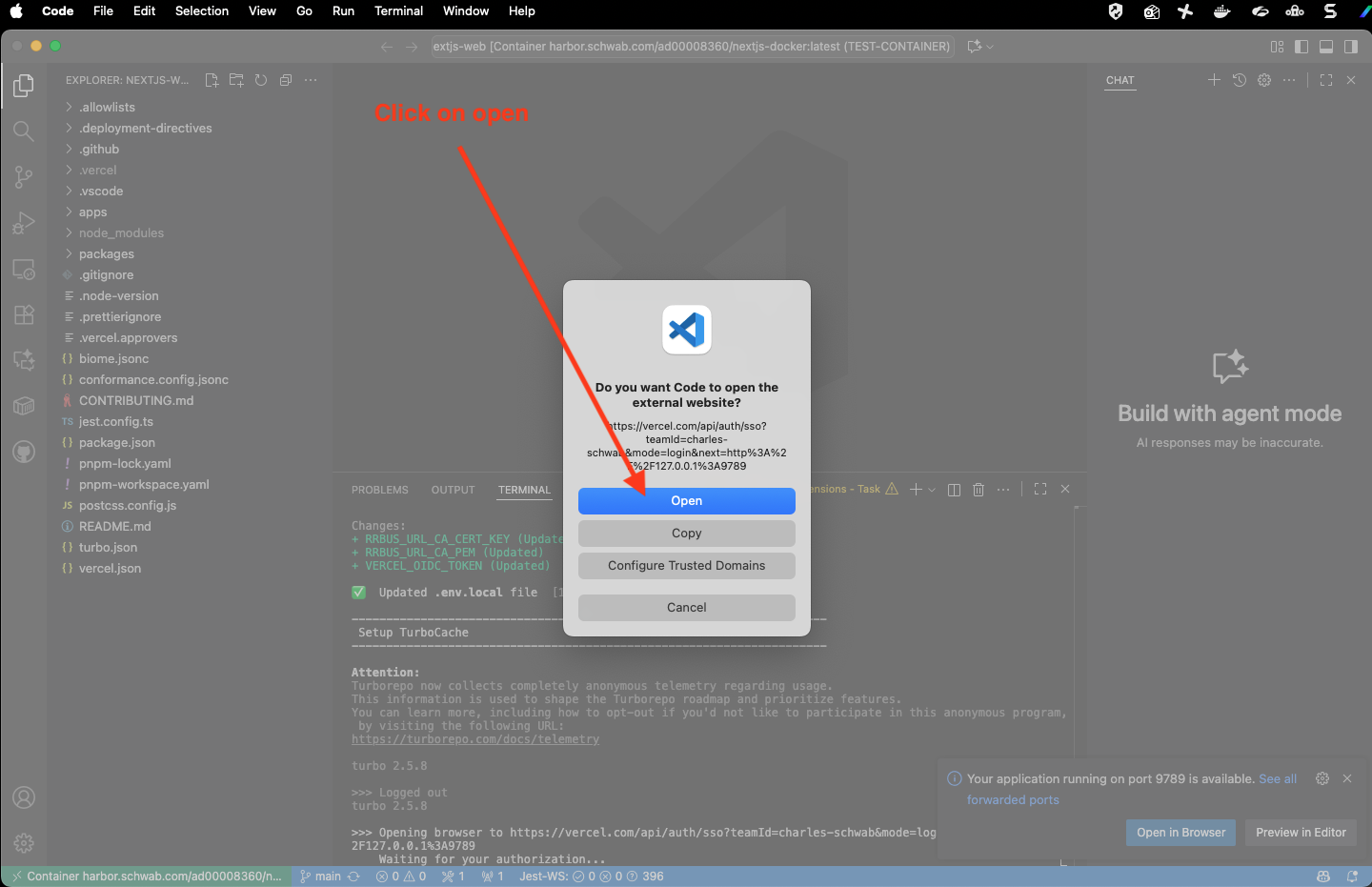 | 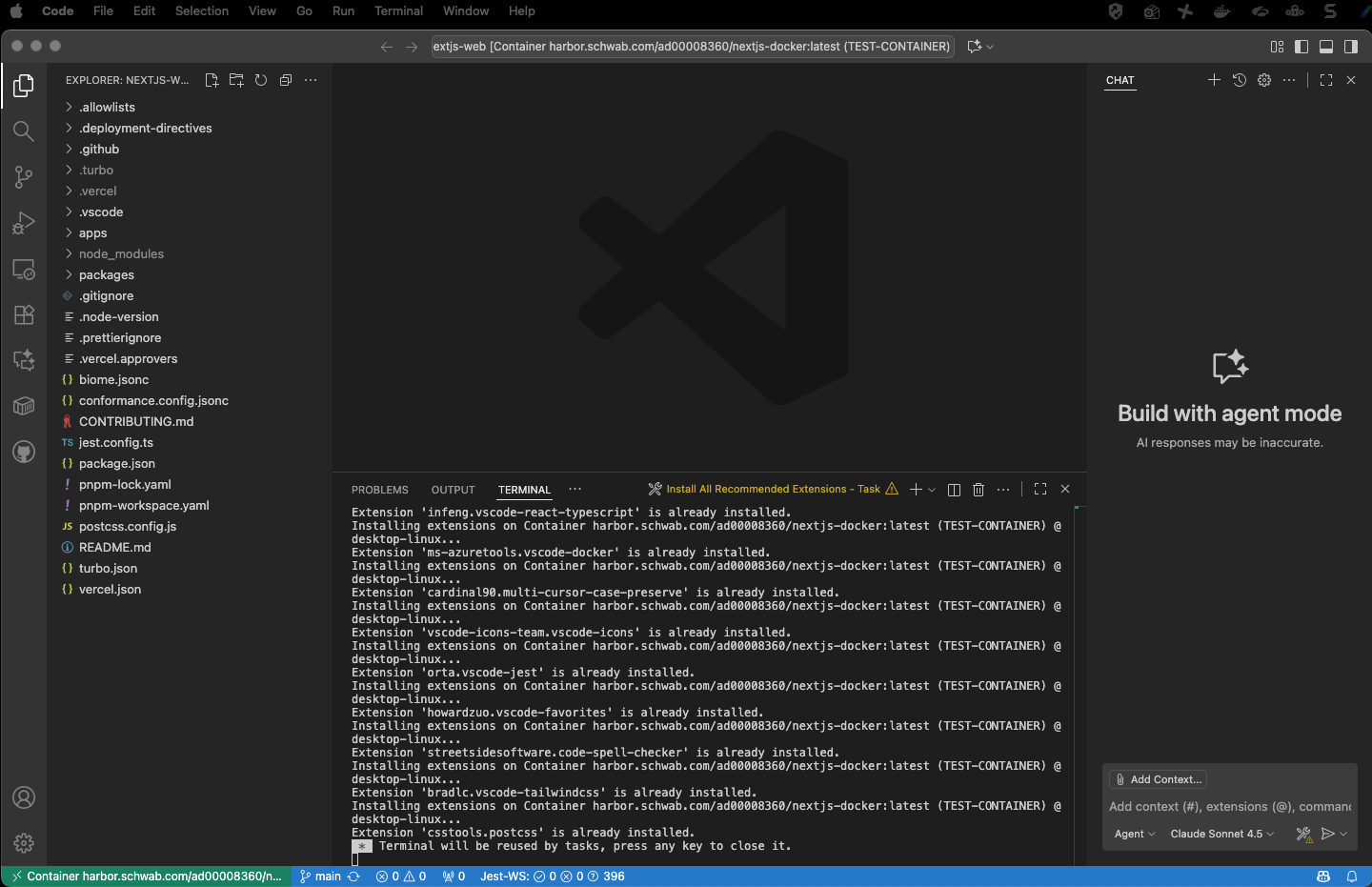 |
| Auth1 | Auth2 | Finish |
View A Page
With your container running, make sure you have a terminal window open in VS Code and do the following:
% cd /home/nextjs-web
% git status
% git pull
% cd /home/nextjs-web
% pnpm clean
% pnpm clean-next
% cd /home/nextjs-web
% pnpm install
% cd /home/nextjs-web
% pnpm build
% cd /home/nextjs-web/apps/www.schwab.com/src/app
% pnpm dev
Open your web browser if VS Code prompts you. If you're using port 3000 (the default), you might browse here: http://localhost:3000/learn/topic/portfolio-management
Congrats! You're ready to start developing!